How to Fix Windows Blue Screen of Death (BSOD) Using Windows Repair Toolbox (2026 Guide)
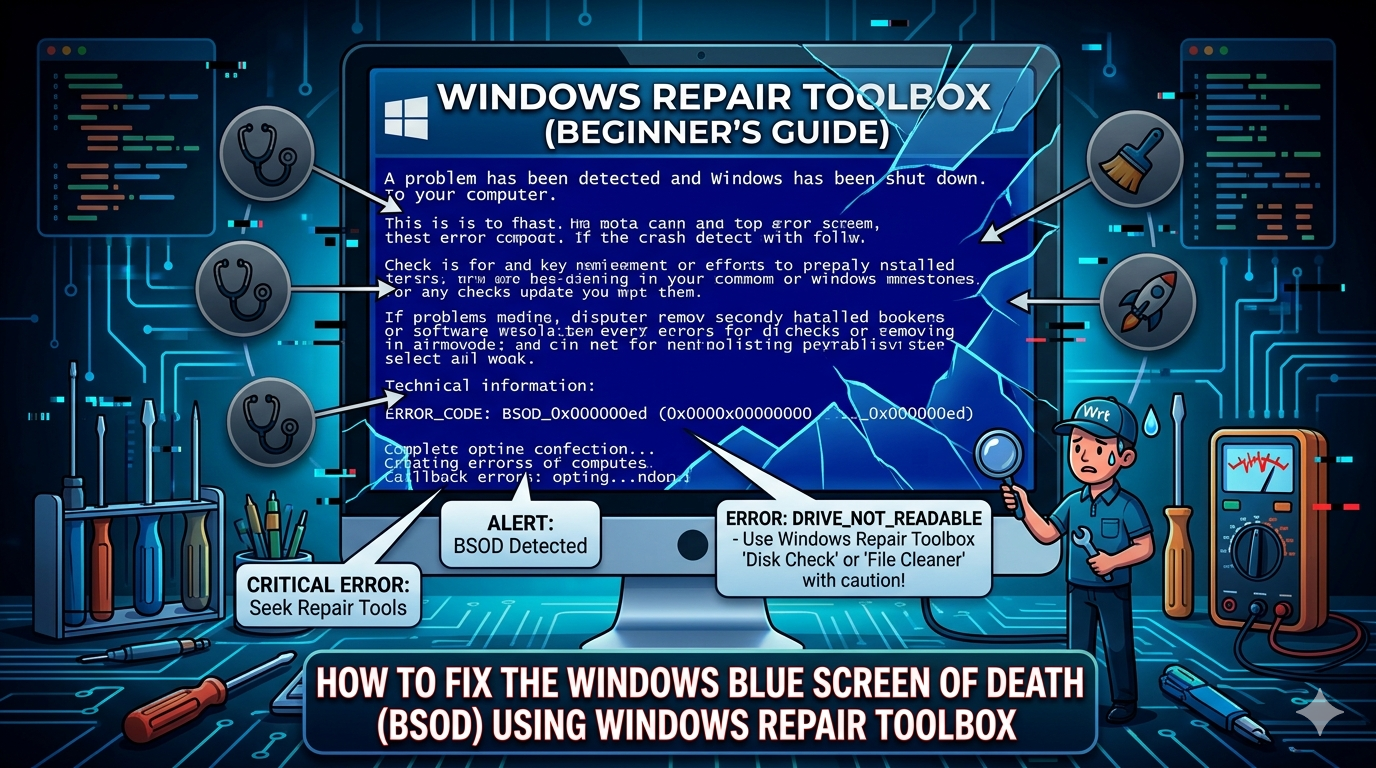
Few computer problems are as alarming as the Blue Screen of Death (BSOD). When this error appears on a computer running Microsoft Windows, the system suddenly stops working and displays a blue error screen before restarting.
These crashes can interrupt work, cause data loss, and make the computer unreliable. The good news is that many BSOD errors can be diagnosed and repaired using specialized troubleshooting tools.
One of the most effective solutions used by technicians is Windows Repair Toolbox, a powerful repair platform that integrates multiple diagnostic utilities in one place.
In this guide, you will learn what causes Blue Screen errors, how to diagnose them, and how to repair them step-by-step using Windows Repair Toolbox.
What Is the Blue Screen of Death?
The Blue Screen of Death (BSOD) is a critical system error that occurs when Windows encounters a problem it cannot safely recover from.
When this happens, the operating system shuts down to prevent further damage.
Common BSOD messages include:
- SYSTEM_SERVICE_EXCEPTION
- IRQL_NOT_LESS_OR_EQUAL
- CRITICAL_PROCESS_DIED
- MEMORY_MANAGEMENT
These errors often appear on systems running Windows 10 and Windows 11, especially if drivers or hardware components are malfunctioning.
Common Causes of BSOD Errors
Before fixing the problem, it is important to understand what typically causes Blue Screen crashes.
Corrupted System Files
Damaged Windows files can prevent the operating system from functioning correctly.
Faulty Drivers
Outdated or incompatible drivers are one of the most common causes of BSOD errors.
Hardware Problems
Failing RAM modules, overheating CPUs, or damaged hard drives can trigger system crashes.
Malware Infections
Malicious software can interfere with critical system processes.
Windows Update Issues
Incomplete or failed updates may introduce system conflicts.
Why Use Windows Repair Toolbox to Fix BSOD
While Windows includes built-in diagnostic tools, troubleshooting complex errors often requires multiple utilities.
Windows Repair Toolbox simplifies the process by providing a centralized environment with professional repair tools.
Advantages include:
- multiple diagnostic utilities in one interface
- easy access to malware scanners
- hardware testing tools
- system repair utilities
This combination allows technicians to identify the root cause of a BSOD quickly.
Step by Step Guide to Fix BSOD Using Windows Repair Toolbox
Follow these steps to diagnose and repair Blue Screen errors effectively.
Step 1: Check System Information
After launching Windows Repair Toolbox, review the system information panel.
Check for signs such as:
- extremely high CPU usage
- low available memory
- disk errors
These indicators can help identify performance bottlenecks.
Step 2: Scan for Malware
Malware infections can cause system instability and crashes.
Use integrated malware scanners such as:
- Malwarebytes
- AdwCleaner
- HitmanPro
Run a full system scan and remove any detected threats before continuing with repairs.
Step 3: Repair Corrupted System Files
Corrupted system files are a common cause of BSOD errors.
Use System File Checker to scan and repair protected Windows files.
This process automatically replaces damaged files with correct versions.
Many BSOD issues can be resolved at this stage.
Step 4: Check Hard Drive Health
Hard drive problems often lead to system crashes.
Use disk diagnostic tools available in Windows Repair Toolbox to check:
- SMART status
- disk sectors
- read/write errors
If the disk shows signs of failure, backing up your data immediately is recommended.
Step 5: Test RAM Memory
Defective memory modules frequently cause BSOD errors.
Run memory diagnostic tools to test your system’s RAM.
If errors appear during the test, replacing the faulty memory module may solve the problem.
Step 6: Update or Reinstall Drivers
Drivers are responsible for communication between Windows and hardware devices.
Outdated or corrupted drivers can cause conflicts that trigger system crashes.
Update drivers for components such as:
- graphics card
- network adapter
- chipset
- storage controllers
Driver updates often resolve compatibility issues.
Step 7: Clean and Optimize the System
After repairing errors, use optimization tools in Windows Repair Toolbox to improve system stability.
Typical tasks include:
- removing temporary files
- disabling unnecessary startup programs
- cleaning outdated registry entries
These actions reduce system load and prevent future crashes.
Additional Tips for Preventing BSOD Errors
Once your system is stable, follow these best practices to prevent future crashes.
Keep Windows Updated
Install system updates regularly to receive bug fixes and security improvements.
Monitor Hardware Temperature
Overheating components can cause instability.
Use monitoring tools to track CPU and GPU temperatures.
Avoid Installing Untrusted Software
Unverified software can introduce malware or system conflicts.
Perform Regular Maintenance
Running periodic system scans and disk cleanups helps maintain performance.
When a BSOD Indicates Hardware Failure
Sometimes BSOD errors occur because of failing hardware components.
Signs that hardware may be failing include:
- frequent crashes
- strange noises from the hard drive
- system freezing under load
- overheating warnings
In such cases, replacing the defective component may be the only permanent solution.
Frequently Asked Questions
Can Windows Repair Toolbox fix all BSOD errors?
Not all BSOD errors can be fixed with software. However, the toolbox helps diagnose the underlying cause in most cases.
Is BSOD always caused by software problems?
No. Hardware failures such as bad RAM or failing storage devices can also trigger these errors.
How long does BSOD repair take?
Simple fixes may take minutes, while hardware diagnostics may require longer testing.
Is it safe to repair system files?
Yes, when using trusted tools like System File Checker, repairing system files is generally safe.
Final Thoughts
The Blue Screen of Death is one of the most serious errors users can encounter on systems running Microsoft Windows. However, many BSOD issues can be diagnosed and repaired using the right troubleshooting tools.
Windows Repair Toolbox provides a powerful platform that integrates malware scanners, hardware diagnostics, and system repair utilities into one convenient interface.
By following a structured troubleshooting process scanning for malware, repairing system files, testing hardware, and optimizing the system you can often restore stability and prevent future crashes.
For technicians and advanced users, Windows Repair Toolbox remains one of the most effective tools for diagnosing and fixing critical Windows system errors.