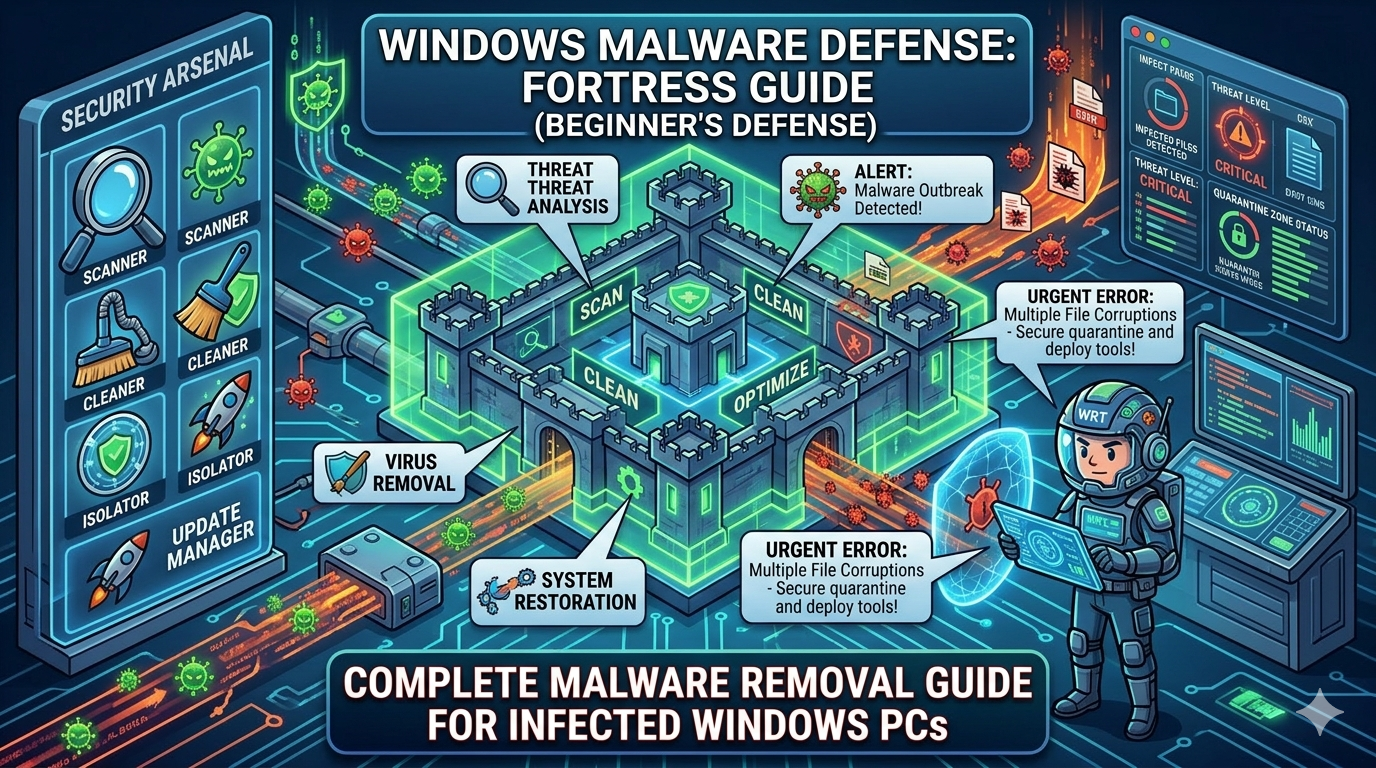
Complete Malware Removal Guide for Infected Windows PCs (2026)
Malware infections remain one of the most common threats affecting computers running Microsoft Windows. From hidden spyware to aggressive ransomware, malicious programs can compromise personal data, slow down system performance, and even make a computer completely unusable.
Many users notice the infection only after experiencing unusual symptoms such as constant pop-ups, unexpected system crashes, or unknown programs running in the background.
Fortunately, modern diagnostic platforms such as Windows Repair Toolbox provide a professional environment for detecting and removing malware efficiently.
This guide explains how malware infects Windows computers, how to identify an infected system, and the safest step by step method to remove threats completely.
What Is Malware?
Malware is a general term used to describe any type of malicious software designed to damage, spy on, or control a computer system.
Malware can infect devices through unsafe downloads, compromised websites, infected email attachments, or malicious USB drives.
Once installed, malware may perform activities such as:
- stealing personal information
- displaying intrusive advertisements
- monitoring user activity
- encrypting files for ransom
- installing additional malicious programs
Because Microsoft Windows is the most widely used desktop operating system in the world, it is also the most frequent target for malware attacks.
Common Types of Malware
Understanding the different types of malware helps identify how infections operate.
Viruses
A computer virus attaches itself to legitimate files and spreads when the infected file is opened.
Trojans
A Trojan disguises itself as legitimate software while secretly installing malicious code.
Ransomware
Ransomware encrypts files and demands payment to restore access.
Spyware
Spyware secretly monitors user activity and sends collected data to attackers.
Adware
Adware generates aggressive advertisements and redirects browsers to suspicious websites.
Signs Your Computer Is Infected
Many malware infections reveal themselves through noticeable system behavior.
Common symptoms include:
- extremely slow computer performance
- frequent crashes or system freezes
- unusual network activity
- random pop-ups and advertisements
- unknown programs installed automatically
- antivirus software being disabled
If your computer shows one or more of these signs, immediate malware scanning is recommended.
Why Use Windows Repair Toolbox for Malware Removal
While many antivirus programs can detect threats, professional technicians often rely on Windows Repair Toolbox because it provides access to multiple specialized tools in one interface.
Instead of installing numerous applications individually, Windows Repair Toolbox integrates trusted utilities designed for malware analysis, system repair, and hardware diagnostics.
Key advantages include:
- centralized malware removal tools
- quick access to diagnostic utilities
- portable usage without installation
- compatibility with multiple Windows versions
This makes the toolbox particularly useful for advanced troubleshooting and system recovery.
Step by Step Malware Removal Process
Follow this structured procedure to clean an infected system safely.
Step 1: Disconnect the Computer from the Internet
Before beginning malware removal, disconnect the infected computer from the internet.
This prevents malware from:
- communicating with remote servers
- downloading additional threats
- spreading across the network
After cleaning the system, the internet connection can be restored.
Step 2: Boot into Safe Mode
Running malware scans in Safe Mode can improve detection rates because many malicious processes do not load in this environment.
To enter Safe Mode in Windows 11 or Windows 10:
- Restart the computer
- Open advanced startup options
- Select Safe Mode with Networking
Once Safe Mode loads, launch Windows Repair Toolbox.
Step 3: Run a Primary Malware Scan
The first step is identifying active threats.
Within Windows Repair Toolbox, launch professional scanning tools such as:
- Malwarebytes
- AdwCleaner
- HitmanPro
Each tool specializes in detecting different types of threats.
Running multiple scanners increases detection accuracy and ensures hidden malware is identified.
Step 4: Remove Detected Threats
Once scans complete, review the detected threats carefully.
Most scanners allow users to:
- quarantine suspicious files
- delete malicious programs
- repair modified system settings
Always remove all confirmed malware before continuing to the next stage.
Step 5: Repair Windows System Files
Some malware modifies or corrupts Windows system files.
Use System File Checker to scan and repair protected operating system components.
This process restores original files and prevents stability problems after malware removal.
Step 6: Check Startup Programs
Many malware infections persist by automatically launching during system startup.
Open the startup manager within Windows Repair Toolbox and review installed programs.
Disable suspicious entries that:
- have unknown publishers
- display random names
- consume excessive resources
Cleaning startup entries improves boot performance and reduces reinfection risks.
Step 7: Clean Temporary Files and Browser Data
Malware often hides within temporary directories.
Perform a full cleanup of:
- temporary system files
- browser caches
- download folders
Removing these files eliminates potential remnants of malicious scripts.
Step 8: Update Security Software
Once the system is clean, update your antivirus software and run a final verification scan.
Keeping security software updated ensures that newly discovered threats are detected.
Advanced Malware Removal Techniques
Some infections require deeper investigation.
Professional technicians may perform additional actions such as:
Rootkit Scanning
Rootkits hide deep within the operating system and evade traditional antivirus tools.
Specialized scanners detect hidden kernel-level threats.
Registry Repair
Malware frequently modifies registry keys to maintain persistence.
Cleaning corrupted entries restores normal system behavior.
Browser Reset
If malware affected browser settings, resetting the browser removes malicious extensions and search engine hijackers.
How to Prevent Future Malware Infections
After cleaning your computer, implementing preventive measures is essential.
Install Trusted Antivirus Software
Reliable antivirus protection detects threats before they infect the system.
Keep Windows Updated
Installing updates for Microsoft Windows patches security vulnerabilities.
Avoid Suspicious Downloads
Many infections originate from unofficial software downloads.
Always download programs from trusted sources.
Use a Firewall
Firewalls block unauthorized network access and protect against external attacks.
Backup Important Data
Regular backups protect important files in case malware damages or encrypts them.
Frequently Asked Questions
Can malware damage hardware?
Most malware affects software and data, but severe infections can cause overheating or excessive resource usage that stresses hardware components.
Is Windows Defender enough protection?
Microsoft Defender Antivirus provides good basic protection, but combining it with specialized scanners improves detection rates.
How long does malware removal take?
The process may take from 30 minutes to several hours depending on the severity of the infection.
Can malware steal personal information?
Yes. Some malware types are specifically designed to collect passwords, financial information, and personal data.
Final Thoughts
Malware infections remain one of the biggest threats to computers running Microsoft Windows. Without proper protection and maintenance, systems can easily become compromised by malicious software.
Using professional tools such as Windows Repair Toolbox allows users and technicians to diagnose infections quickly and remove threats using a structured process.
By combining multiple malware scanners, repairing corrupted files, and implementing preventive security practices, you can restore your system and significantly reduce the risk of future infections.
Maintaining a clean and secure Windows environment not only protects your personal data but also ensures long-term system stability and performance.