Top 10 Free PC Optimization Tools to Speed Up Windows 11 in 2026
Computers running Windows 11 are powerful and efficient, but over time even the fastest system can become slow. Temporary files accumulate, background programs consume resources, and outdated drivers can affect overall performance.
For this reason, technicians and advanced users often rely on PC optimization tools to maintain system speed and stability.
In this guide, we will explore the top 10 free PC optimization tools available in 2026 that help improve performance, clean unnecessary files, and keep systems running smoothly.
These utilities are widely used by professionals working with Microsoft Windows systems and are safe to use when downloaded from trusted sources.
Why Windows 11 Becomes Slow Over Time
Even modern operating systems like Windows 11 can gradually lose performance due to several factors.
Common causes include:
- accumulation of temporary files
- excessive startup programs
- registry clutter
- outdated drivers
- background processes consuming RAM
Optimization tools help address these issues by cleaning unnecessary files, managing startup programs, and monitoring system resources.
What Makes a Good PC Optimization Tool?
Before installing any optimization software, it is important to understand what features to look for.
The best tools typically include:
- disk cleanup capabilities
- startup manager
- system monitoring
- privacy protection features
- safe registry cleaning
Reliable tools should improve system performance without risking system stability.
1. CCleaner
One of the most widely known optimization tools is CCleaner.
This utility helps remove unnecessary files and improve overall system performance.
Key features include:
- temporary file cleanup
- browser cache removal
- startup program management
- registry cleaning
Although it has a premium version, the free version remains powerful enough for most users.
2. Windows Repair Toolbox
Another powerful solution used by technicians is Windows Repair Toolbox.
Unlike traditional cleaners, this program acts as a platform that provides access to dozens of diagnostic and repair utilities.
Technicians use it to:
- repair system errors
- run disk diagnostics
- analyze system performance
- access multiple maintenance tools from one interface
Because of its versatility, it is often included in professional repair toolkits.
3. BleachBit
BleachBit is a free and open-source cleaning tool that removes unnecessary files and frees disk space.
It is often compared to other cleaners but has the advantage of being lightweight and privacy-focused.
Features include:
- cache cleaning
- system log removal
- secure file deletion
- disk space recovery
This tool is especially useful for users who prefer open-source software.
4. Advanced SystemCare Free
Advanced SystemCare provides a wide range of optimization tools designed to improve system performance.
The free version includes:
- one-click system cleanup
- startup optimization
- privacy cleaning
- performance monitoring
Its simple interface makes it accessible even for beginner users.
5. Wise Disk Cleaner
Wise Disk Cleaner focuses on removing junk files and optimizing disk performance.
Key advantages include:
- fast scanning
- automatic cleaning options
- disk defragmentation tools
- minimal system resource usage
Because of its simplicity and speed, it is widely used for routine system maintenance.
6. Glary Utilities
Glary Utilities is a comprehensive system optimization suite that includes multiple maintenance tools.
These include:
- disk cleanup
- startup manager
- registry repair
- memory optimization
Many technicians use Glary Utilities because it combines multiple tools in a single program.
7. IObit Uninstaller
Removing unused programs can significantly improve performance.
IObit Uninstaller helps remove stubborn applications and leftover files that standard uninstallers often miss.
Benefits include:
- complete software removal
- cleanup of leftover registry entries
- browser plugin management
This tool helps prevent unnecessary programs from slowing down your system.
8. Autoruns
Developed by Microsoft, Autoruns provides advanced control over startup processes.
It allows users to see everything that launches automatically when Microsoft Windows starts.
Technicians often use Autoruns to:
- disable unnecessary startup programs
- identify suspicious processes
- troubleshoot slow boot issues
Because it offers detailed system control, it is particularly useful for advanced users.
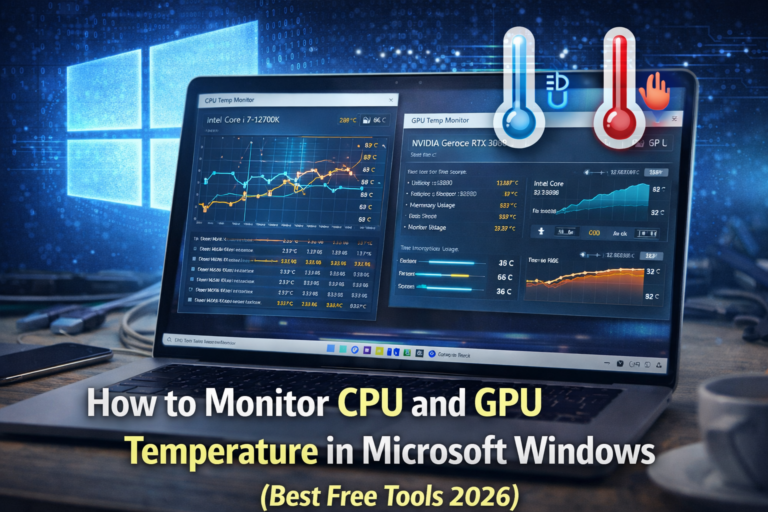
9. HWMonitor
System monitoring is an important part of optimization.
HWMonitor helps track hardware information such as:
- CPU temperature
- GPU temperature
- fan speeds
- voltage levels
Monitoring hardware performance helps identify overheating problems that could slow down the system.
10. Speccy
Finally, Speccy provides detailed hardware information along with temperature monitoring.
It helps users quickly identify:
- CPU model
- RAM capacity
- motherboard details
- storage devices
Understanding system specifications is essential when diagnosing performance issues.
Additional Tips to Speed Up Windows 11
While optimization tools can help improve performance, users should also follow basic maintenance practices.
Disable Unnecessary Startup Programs
Too many startup applications can significantly increase boot time.
Managing startup items helps the system load faster.
Keep Drivers Updated
Outdated drivers can cause performance problems and compatibility issues.
Remove Unused Software
Programs that are no longer needed still consume storage space and system resources.
Maintain Free Disk Space
Keeping at least 15–20% free disk space helps maintain optimal performance.
When Technicians Use Optimization Tools
Professional technicians frequently rely on optimization utilities when repairing computers running Microsoft Windows.
Common scenarios include:
- troubleshooting slow computers
- removing unnecessary files
- improving system startup speed
- diagnosing hardware issues
Combining multiple tools often produces the best results.
Frequently Asked Questions
Do PC optimization tools really improve performance?
Yes, when used correctly they can remove unnecessary files, manage startup processes, and improve system efficiency.
Are free optimization tools safe?
Most well known utilities are safe if downloaded from official websites.
Can cleaning the registry speed up Windows?
Registry cleaning can help remove obsolete entries, but it should always be done carefully to avoid system issues.
How often should optimization tools be used?
Running system cleanup once or twice per month is generally sufficient for most users.
Final Thoughts
Maintaining system performance is essential for users running Windows 11. Over time, unnecessary files, background processes, and outdated software can slow down even the most powerful computer.
Using reliable optimization tools allows users to clean their systems, monitor hardware health, and improve overall performance.
Whether you are a home user trying to speed up your computer or a technician performing system maintenance, these free PC optimization tools provide an effective way to keep Windows systems running smoothly in 2026.