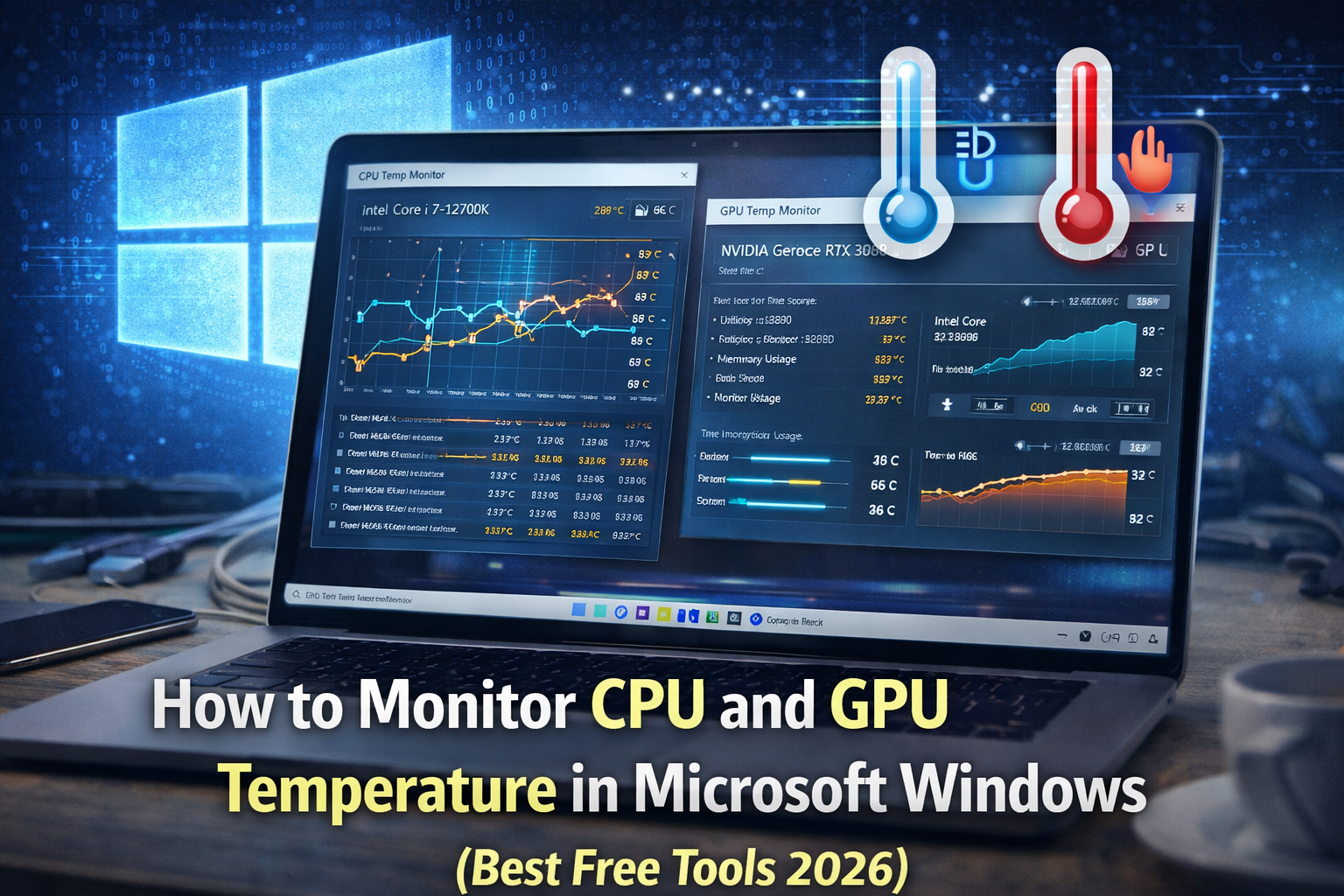
How to Monitor CPU and GPU Temperature in Microsoft Windows (Best Free Tools 2026)
Modern computers are incredibly powerful, but they also generate a significant amount of heat. If the processor or graphics card overheats, it can cause system instability, performance throttling, or even permanent hardware damage.
For users running Microsoft Windows, monitoring hardware temperatures is one of the most important steps for maintaining a stable and reliable system.
Whether you are a technician troubleshooting a slow PC or a gamer trying to optimize performance, knowing how to monitor CPU and GPU temperatures can help you detect problems early and keep your system running efficiently.
This guide explains why temperature monitoring is important, what temperatures are safe, and the best free tools available in 2026.
Why Monitoring CPU and GPU Temperature Is Important
Computer components generate heat when performing tasks. Processors and graphics cards are particularly sensitive to temperature changes.
If temperatures rise too high, several problems can occur:
- system slowdowns caused by thermal throttling
- random system crashes
- reduced hardware lifespan
- unexpected shutdowns
Monitoring temperature allows users to detect cooling issues before they become serious hardware problems.
For technicians working with Windows 11 or Windows 10, temperature monitoring is a standard part of system diagnostics.
Safe Temperature Ranges for CPU and GPU
Although temperature limits vary depending on hardware models, most modern systems operate within certain safe ranges.
Typical CPU temperatures:
- Idle: 30°C – 45°C
- Normal load: 50°C – 70°C
- Heavy load: up to 85°C
Typical GPU temperatures:
- Idle: 35°C – 50°C
- Gaming load: 60°C – 85°C
Temperatures consistently above these ranges may indicate cooling problems.
Signs Your Computer May Be Overheating
Sometimes users do not realize their system is overheating until performance issues appear.
Common signs include:
- loud cooling fans running constantly
- sudden performance drops during gaming
- system freezing under heavy load
- unexpected shutdowns
If these symptoms appear, checking CPU and GPU temperature should be one of the first diagnostic steps.
Best Free Tools to Monitor CPU and GPU Temperature
Several free tools allow users to monitor hardware temperature in real time.
Below are some of the most reliable utilities used by technicians.
1. Core Temp
Core Temp is a lightweight program designed specifically to monitor CPU temperature.
Key features include:
- real-time temperature monitoring
- individual core temperature readings
- low system resource usage
- simple interface
Because it focuses only on processor temperature, Core Temp is extremely accurate and easy to use.
2. HWMonitor
HWMonitor is one of the most popular hardware monitoring tools available.
It provides detailed information about:
- CPU temperature
- GPU temperature
- motherboard sensors
- fan speeds
- voltage levels
Technicians often use HWMonitor because it displays multiple system sensors in a single interface.
3. MSI Afterburner
MSI Afterburner is widely used by gamers and enthusiasts.
Although it is primarily a GPU overclocking tool, it also provides powerful monitoring features.
Capabilities include:
- real time GPU temperature monitoring
- on screen display during games
- performance graphs
- fan control options
This tool is particularly useful for users who want to monitor temperatures while gaming.
4. Open Hardware Monitor
Open Hardware Monitor is an open source monitoring utility compatible with most hardware platforms.
It supports monitoring for:
- CPU temperature
- GPU temperature
- fan speeds
- power consumption
Because it is open source, it remains a favorite among technicians who prefer lightweight monitoring tools.
5. Speccy
Speccy provides both system information and temperature monitoring.
In addition to displaying temperatures, Speccy shows details about:
- installed RAM
- motherboard model
- graphics card information
- storage devices
This makes it useful for both monitoring and hardware identification.
How to Monitor Temperature Step by Step
Monitoring temperatures on Microsoft Windows is straightforward using any of the tools listed above.
Step 1: Install a Monitoring Tool
Download and install one of the recommended monitoring programs.
Step 2: Launch the Software
Once installed, open the monitoring tool to view real-time hardware information.
Step 3: Observe Idle Temperatures
Check temperatures while the system is idle to establish a baseline.
Step 4: Test Under Load
Run demanding applications or games to see how temperatures change under heavy usage.
Step 5: Evaluate the Results
Compare the temperatures with recommended safe ranges to determine if cooling improvements are necessary.
How to Reduce High CPU and GPU Temperatures
If your monitoring tools show high temperatures, several solutions can help.
Clean Dust from the Computer
Dust buildup inside the computer case can block airflow and cause overheating.
Cleaning fans and vents often improves cooling significantly.
Improve Airflow
Ensure the computer case has proper ventilation and that air can flow freely.
Adding additional case fans may help.
Replace Thermal Paste
Thermal paste transfers heat between the CPU and the cooler.
Old or dried thermal paste can reduce cooling efficiency.
Upgrade the Cooling System
High-performance CPUs and GPUs may require better cooling solutions such as advanced air coolers or liquid cooling systems.
Temperature Monitoring for Technicians
Professional technicians often monitor hardware temperatures while diagnosing system problems.
When troubleshooting systems running Microsoft Windows, overheating can sometimes explain issues such as:
- sudden shutdowns
- performance throttling
- blue screen errors
Using monitoring tools alongside repair platforms like Windows Repair Toolbox helps technicians identify both software and hardware problems during repairs.
Frequently Asked Questions
What is the maximum safe CPU temperature?
Most modern processors can safely operate up to around 90°C, but sustained temperatures above 85°C should be avoided.
Is GPU temperature of 80°C normal?
Yes. Many graphics cards operate safely between 70°C and 85°C during heavy workloads.
Can overheating damage hardware?
Yes. Long-term overheating can shorten the lifespan of processors and graphics cards.
Should laptops be monitored for temperature?
Absolutely. Laptops often have limited cooling systems and can overheat more easily than desktop computers.
Final Thoughts
Monitoring CPU and GPU temperature is an essential part of maintaining a stable computer system running Microsoft Windows.
Using reliable monitoring tools allows users to detect overheating issues early and take corrective action before hardware damage occurs.
Whether you are a casual user, a gamer, or a professional technician, keeping track of system temperatures helps ensure optimal performance and long term reliability.
Combined with regular maintenance and proper cooling, temperature monitoring can significantly extend the lifespan of your computer hardware.