Ultimate USB Toolkit for Computer Repair Technicians (2026 Professional Guide)
For computer repair technicians, efficiency is everything. When diagnosing and repairing computers running Microsoft Windows, having the right tools readily available can save hours of troubleshooting.
One of the most valuable resources for technicians is a USB repair toolkit a portable collection of diagnostic software, repair utilities, and essential drivers that can be used on virtually any computer.
Instead of downloading tools individually for every repair job, technicians can carry a prepared USB drive containing everything needed to diagnose hardware issues, remove malware, recover data, and repair operating systems.
In this guide, we will explore the essential software, tools, and organization strategies required to build the ultimate USB toolkit for professional computer repair.
Why Every Technician Needs a Repair USB Toolkit
Modern operating systems are complex. A malfunctioning system may suffer from:
- corrupted system files
- malware infections
- missing drivers
- disk failures
- overheating hardware
When a computer cannot connect to the internet or boot properly, downloading repair tools becomes difficult.
A USB toolkit allows technicians to:
- diagnose system problems quickly
- remove malware offline
- repair operating system errors
- recover lost data
- restore hardware functionality
For many technicians, this portable toolkit becomes the most important tool in their repair workflow.
Choosing the Right USB Drive
Before building a repair toolkit, selecting the correct USB drive is essential.
Recommended specifications include:
- Capacity: at least 64GB
- USB standard: USB 3.0 or higher
- Durability: metal casing or rugged design
A larger capacity drive allows technicians to store operating system installers, recovery tools, and driver libraries.
Essential Categories of Tools for a Technician USB Toolkit
A professional repair toolkit typically includes several categories of utilities.
These categories ensure technicians can address both software and hardware issues.
System Repair and Diagnostic Tools
System repair utilities help identify and fix problems within the operating system.
One powerful platform used by technicians is Windows Repair Toolbox, which acts as a central hub for multiple diagnostic and repair utilities.
Tools in this category may help with:
- repairing corrupted system files
- analyzing system performance
- diagnosing hardware problems
- cleaning temporary files
These utilities are often the first step when troubleshooting system instability.
Malware Removal Tools
Malware infections are one of the most common problems technicians encounter.
A good USB toolkit should include trusted malware scanners such as:
- Malwarebytes
- AdwCleaner
- HitmanPro
Running multiple scanners increases detection accuracy and helps identify hidden threats.
Offline malware removal is especially useful when malicious software blocks internet access or disables antivirus programs.
Hardware Diagnostic Tools
Hardware problems can cause symptoms similar to software errors.
Technicians should include diagnostic tools capable of testing components such as:
- RAM memory
- hard drives and SSDs
- CPU temperature
- motherboard sensors
These tools help determine whether the problem is caused by failing hardware rather than software corruption.
Disk and Data Recovery Tools
Data recovery utilities are essential when working with damaged storage devices.
A technician’s USB toolkit should include software capable of:
- recovering deleted files
- repairing corrupted partitions
- cloning disks
- analyzing disk health
These tools can often recover important files before reinstalling the operating system.
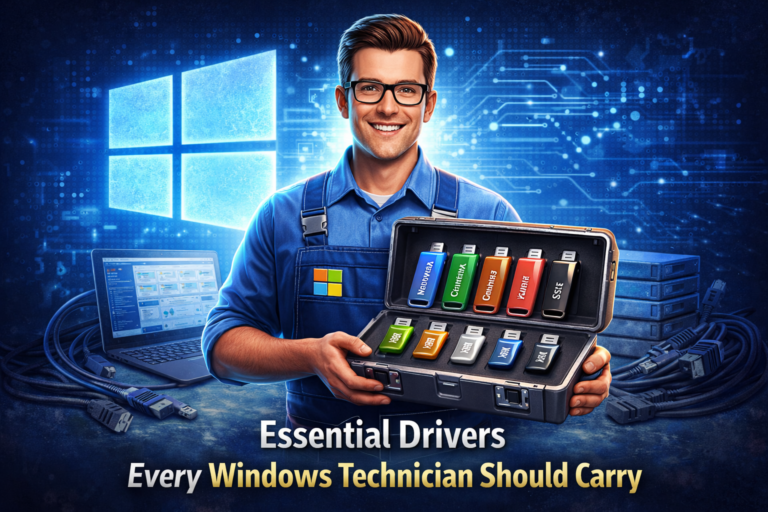
Driver Libraries
Missing drivers are common after reinstalling Microsoft Windows.
Technicians should maintain a collection of essential drivers including:
- network drivers
- graphics drivers
- chipset drivers
- storage controller drivers
- audio drivers
Major hardware manufacturers include:
- Intel
- AMD
- Realtek
- NVIDIA
Having these drivers available offline allows technicians to restore functionality quickly.
Bootable Operating System Tools
Many repair tasks require booting outside the main operating system.
Technicians often include bootable environments such as recovery systems that allow them to:
- repair boot errors
- access locked files
- scan disks for malware
- perform offline repairs
These environments can be launched directly from the USB drive when the main system cannot start.
Password Recovery Utilities
In some repair scenarios, users forget their system passwords.
Password recovery tools allow technicians to regain access to the operating system so they can perform repairs or recover data.
These tools should always be used only with the owner’s permission.
Remote Support Tools
Technicians often assist clients remotely.
Including remote access tools on a repair USB allows technicians to quickly install support software and troubleshoot problems over the internet.
Remote tools are particularly useful for IT support businesses.
Recommended Folder Structure for a Repair USB Toolkit
A well organized toolkit saves time during repairs.
Technicians often organize tools using a structured folder system.
Example layout:
USB Technician Toolkit
 ├── Malware Removal
 ├── System Repair
 ├── Hardware Diagnostics
 ├── Disk Tools
 ├── Drivers
 ├── Boot Tools
 ├── Data Recovery
 └── Utilities
Organizing tools by category makes it easier to locate the correct software quickly.
Additional Utilities Technicians Should Include
Beyond core repair tools, technicians often carry additional utilities that simplify system maintenance.
Useful tools may include:
- file compression software
- text editors
- network diagnostic tools
- system monitoring utilities
These small tools often help during troubleshooting.
Keeping the USB Toolkit Updated
Technology evolves quickly, so technician toolkits must be updated regularly.
Recommended maintenance practices include:
- updating antivirus scanners
- replacing outdated drivers
- adding new diagnostic tools
- removing obsolete software
Keeping the toolkit updated ensures compatibility with modern systems.
Advantages of Using a Portable Repair Toolkit
A USB technician toolkit offers several advantages.
Portability
Technicians can carry all repair tools in a single device.
Faster Diagnostics
Tools are immediately available without needing downloads.
Offline Repairs
Systems without internet access can still be repaired.
Professional Efficiency
Technicians can troubleshoot multiple computers quickly.
Frequently Asked Questions
How large should a technician USB toolkit be?
Most technicians use drives between 64GB and 256GB depending on the number of tools included.
Can a USB toolkit repair any computer?
While it cannot solve every problem, a well prepared toolkit can diagnose and repair most common PC issues.
Is it safe to use portable repair tools?
Yes, when downloaded from trusted sources and used properly.
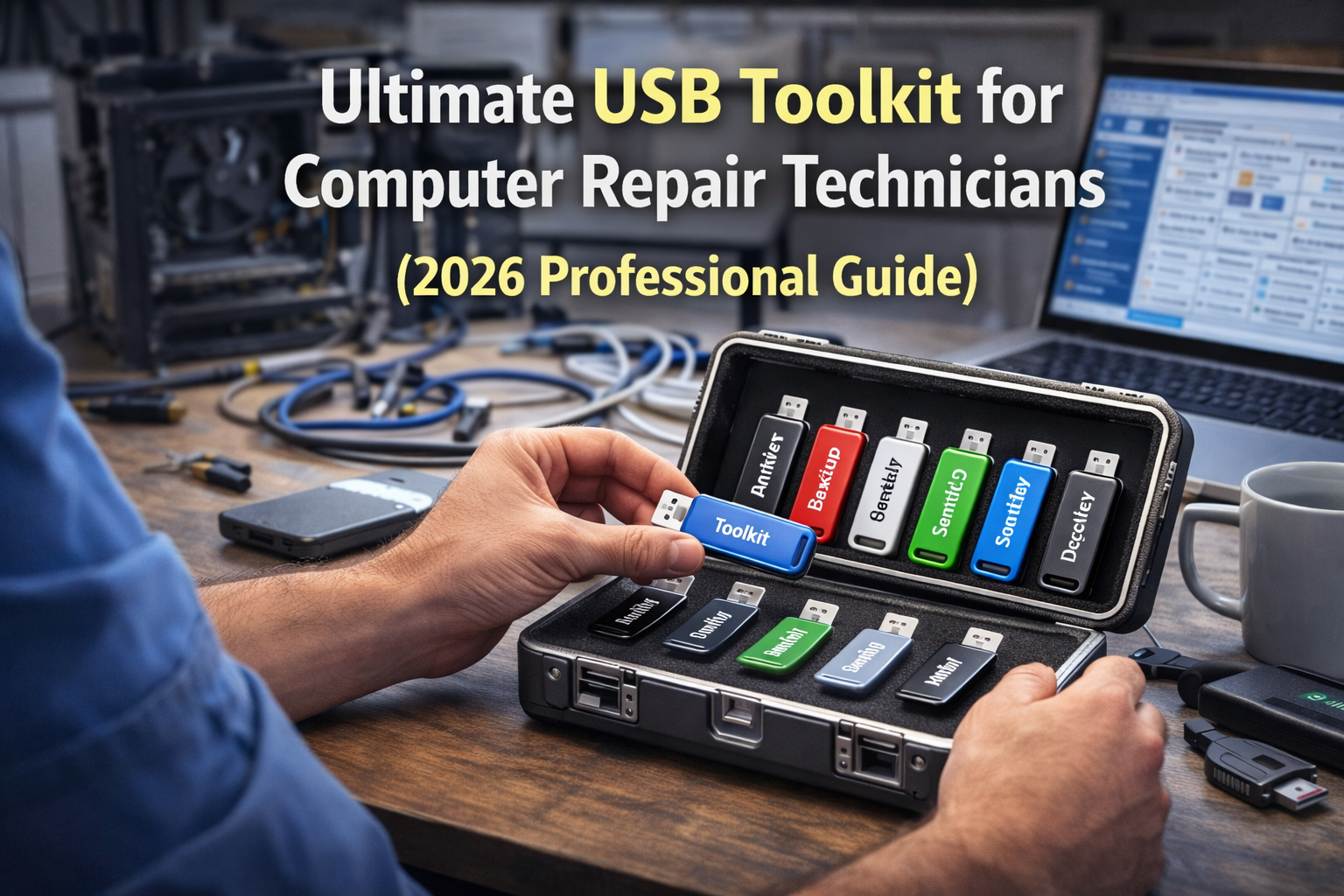
Should technicians carry multiple USB drives?
Some professionals maintain separate USB drives for operating systems, drivers, and diagnostic tools.
Final Thoughts
A well prepared USB repair toolkit is one of the most valuable resources for technicians who repair computers running Microsoft Windows.
By combining diagnostic utilities, malware removal tools, driver libraries, and recovery environments, technicians can solve a wide range of system problems quickly and efficiently.
Platforms like Windows Repair Toolbox help centralize many of these utilities, making it easier to manage complex repairs.
With the right preparation and regular updates, a professional USB toolkit can dramatically improve repair efficiency and ensure that technicians are always ready to handle unexpected system failures.